Assignment
Create a Flow Chart
Create a Flow Chart
Completion requirements
View
Make a submission
Receive a grade
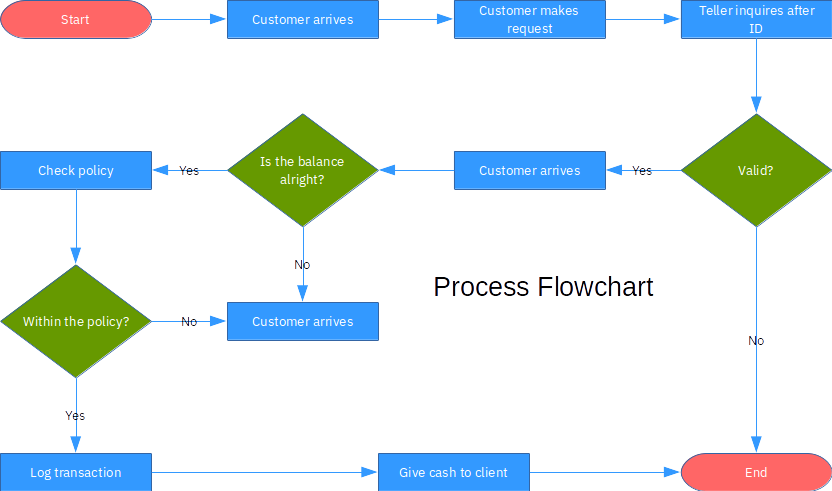
In this exercise you will create a process flowchart. This type of flowchart describes the steps taken in a business process (for example withdrawing cash from a bank account). Your goal is to design a flowchart like the one shown in the image below.
Instructions
- Create a new drawing and name the file flowchart-exercise.odg.
- Make sure you have Grid Visible and Snap to Grid ebabled.
- Set the page to landscape orientation
- Start drawing the symbols using the Flowchart button in the Drawing toolbar.
- For every symbol type: draw the first one, format text and colors and use copy paste to create the remaining symbols.
- For Start and Stop (red) use Terminator symbol
- For the rectangles (blue) use Process symbol
- For the rhombus (green) use Decision symbol
- Draw the connector lines
- Save your file and submit
Check out the video below with the exercise solution
- 6 December 2017, 4:42 PM